Getting Started for Educators
Register, create courses, add content, set payment options, and publish
How publishing works
As an educator, you build courses with modules, topics, and questions. When content is ready, configure purchase options and publish so learners can discover and enroll. You can update unpublished content freely; published content has some editing restrictions after purchases.
Step-by-Step Guide
1 Register as an Educator
Educator accounts are organizational accounts for creating and publishing content.
- Go to Educator registration
- Sign up with email or continue with Google
- Provide your organization name and details
- After registration, access your Educator dashboard to start building
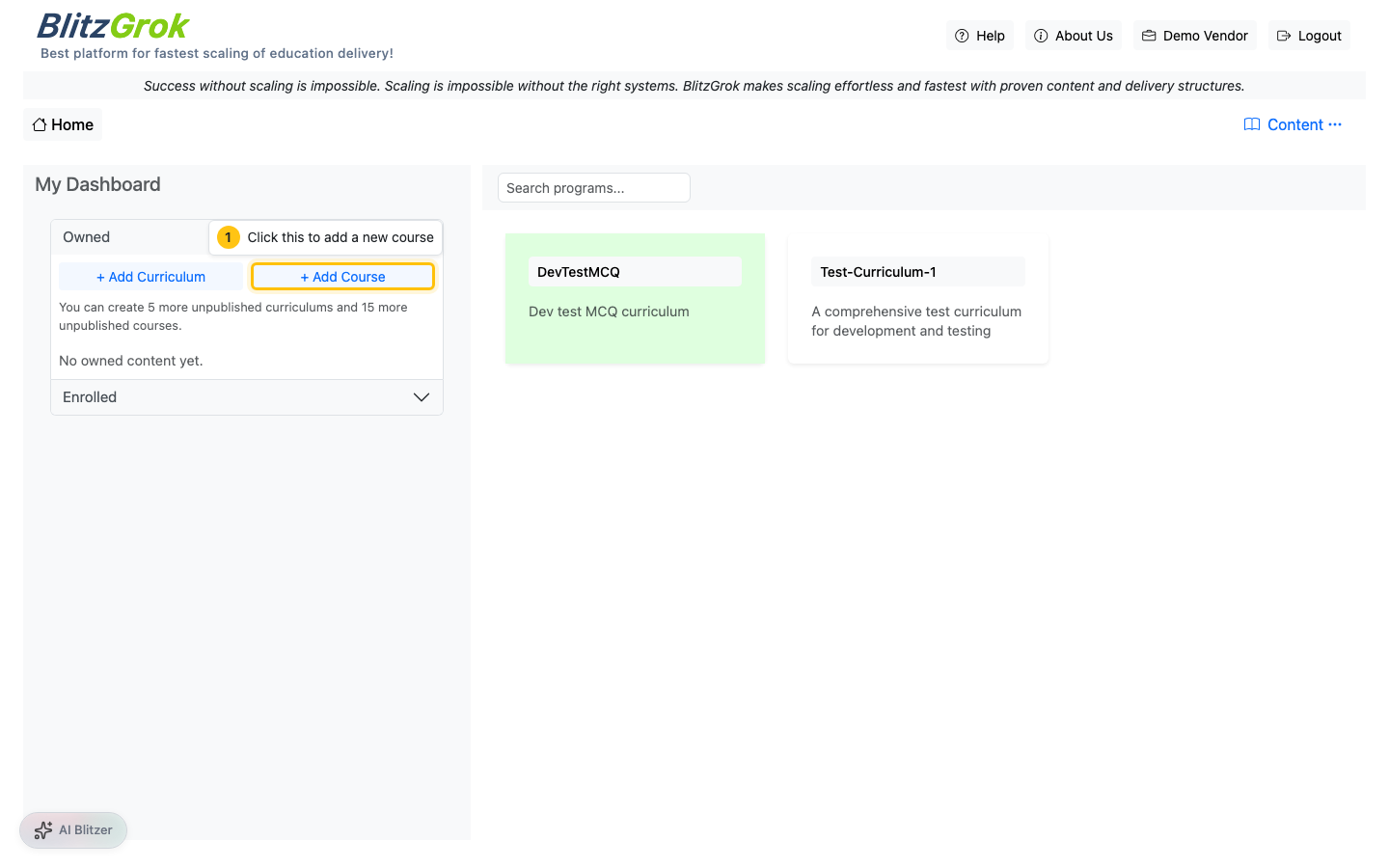
2 Create a Course or Curriculum
Start with a single course, or group courses into a curriculum for a full learning path.
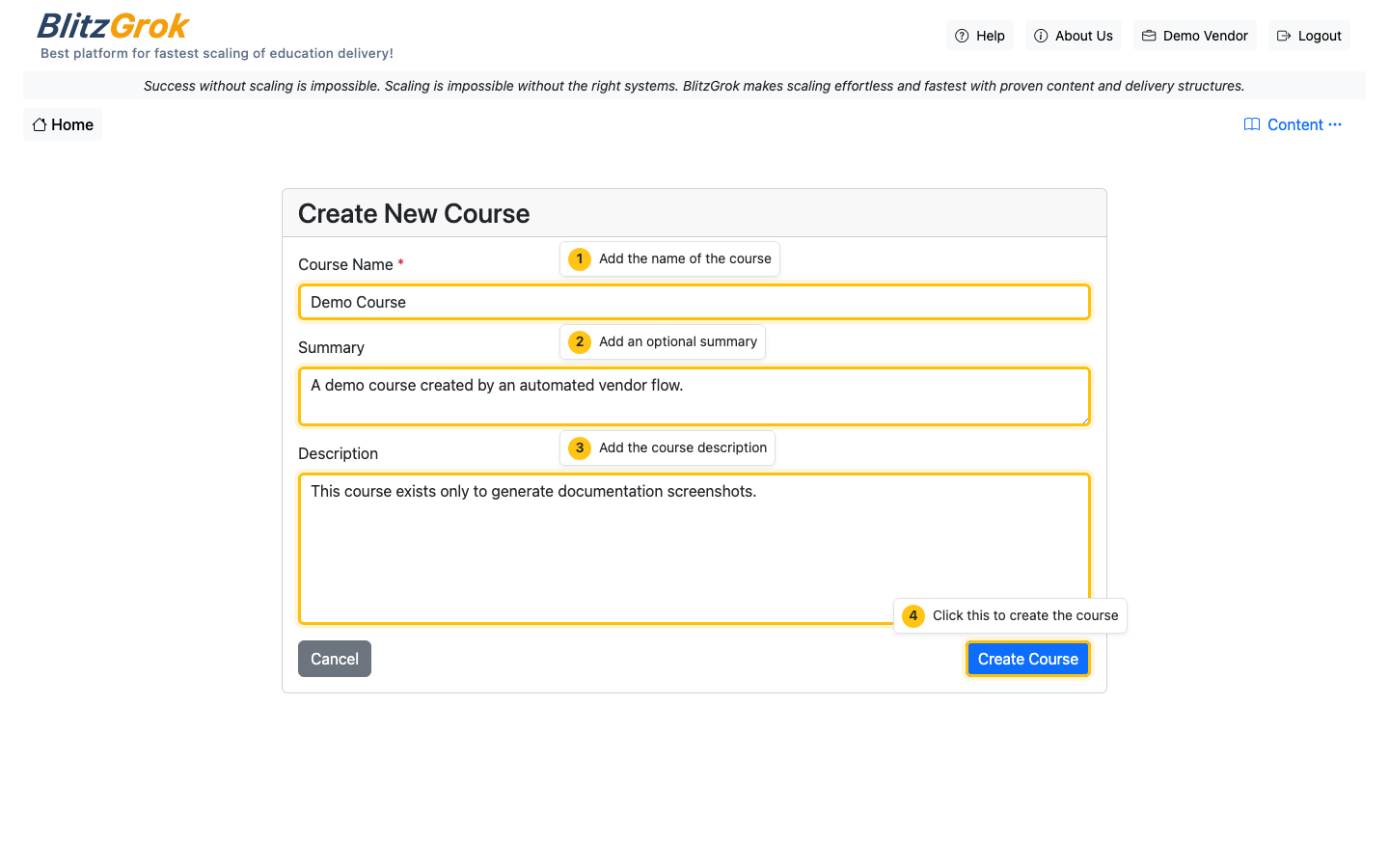
- From your Educator dashboard, click Create New Curriculum or Add Course
- Fill in the name, description, and tags so learners can find your content
- A course is the unit learners practice through; a curriculum groups multiple courses
3 Build Modules, Topics & Questions
Structure your course so learners progress in a clear, logical order.
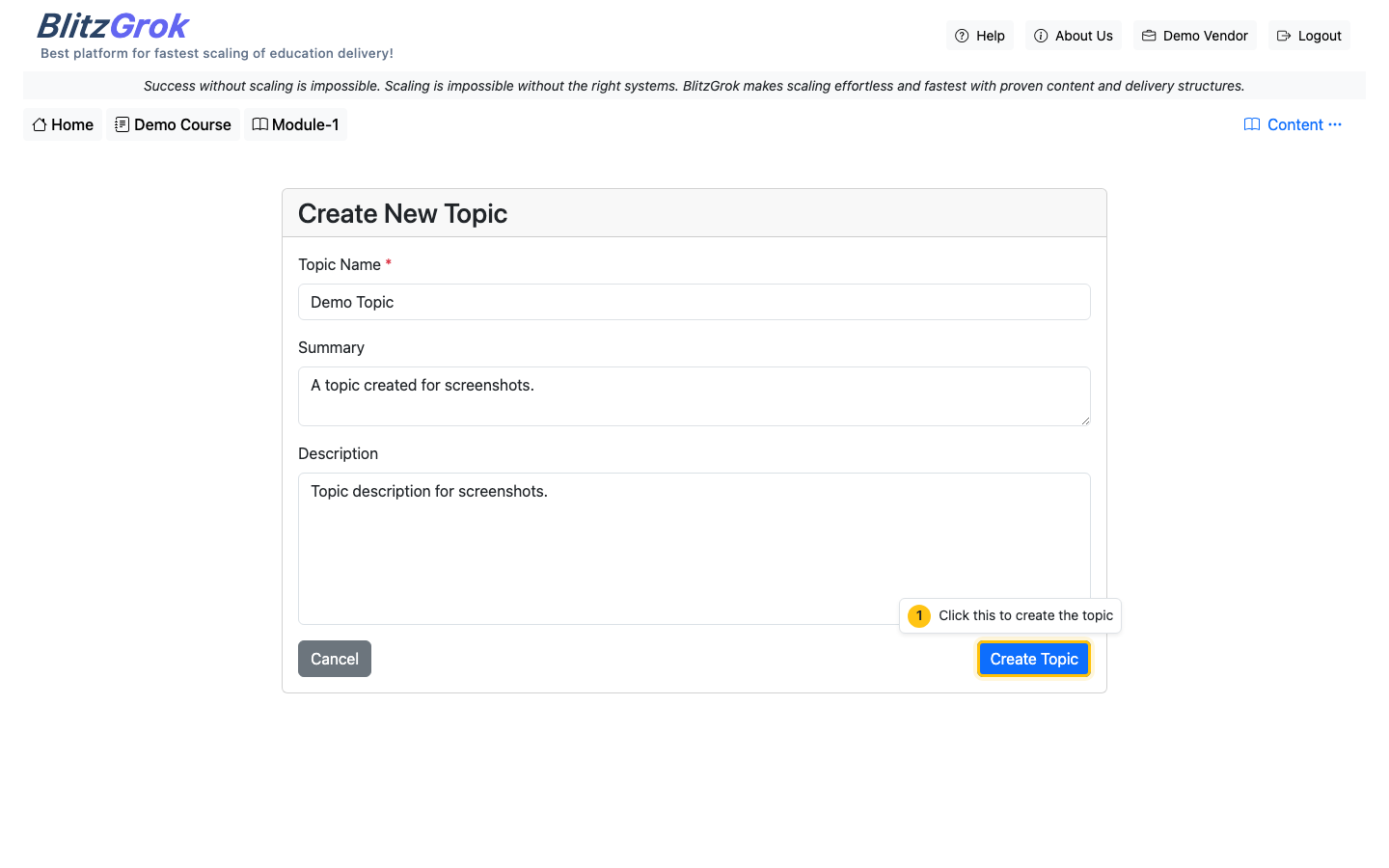
- Add modules to break the course into focused sections
- Add topics inside each module—one concept per topic
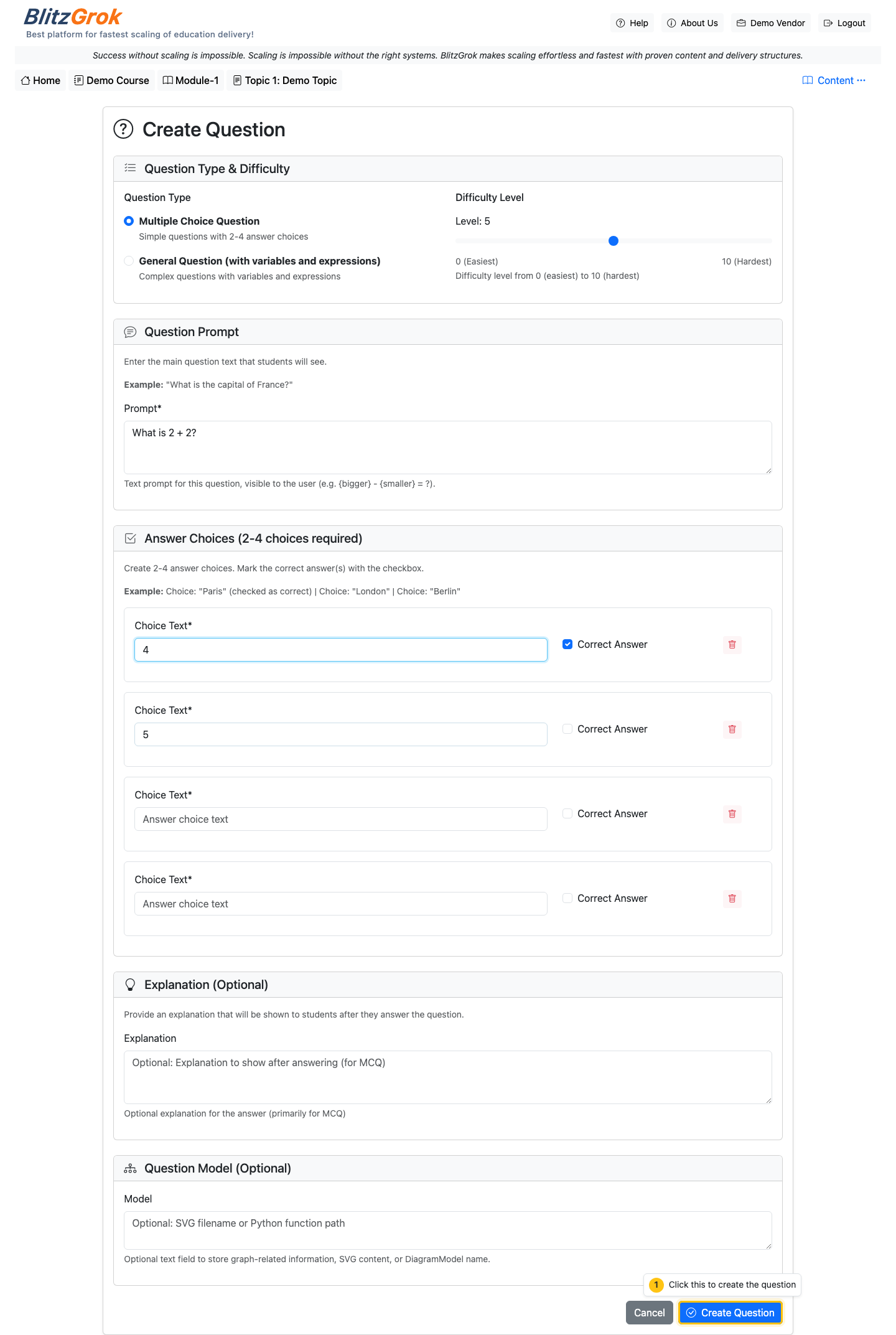
- Create questions inside topics using dynamic variables for unlimited practice
- Add descriptions, diagrams, and embedded videos to enrich content
4 Update & Refine Content
Edit your content at any time before and after publishing—within platform rules.
- Open any course, module, topic, or question and use the Edit action
- Update descriptions, reorder modules/topics via drag-and-drop, and revise questions
- Preview content as learners will see it before publishing changes
- Test questions yourself to ensure they generate correctly
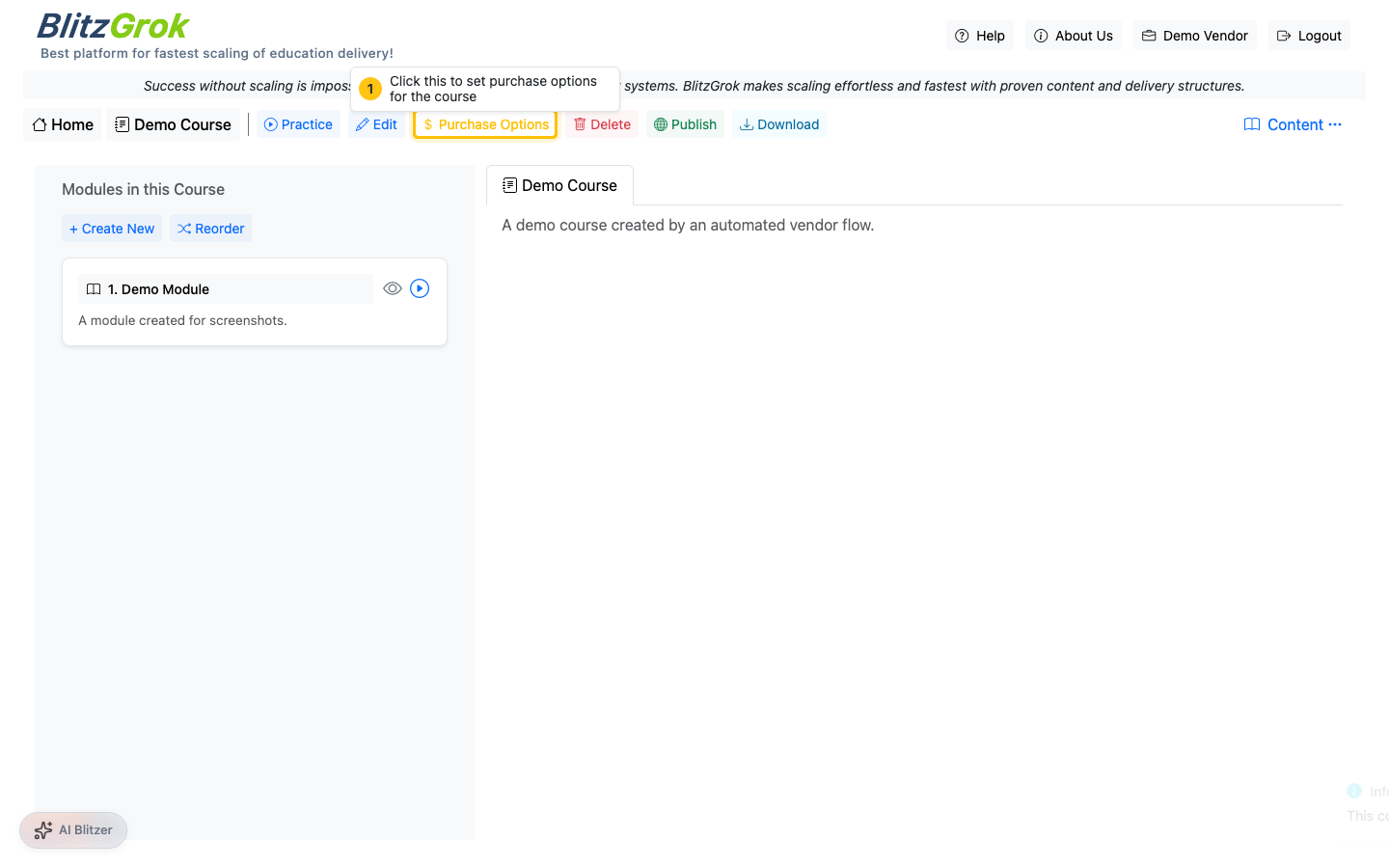
5 Set Up Payment Options
Configure how learners access your content—free, one-time purchase, or subscription.
- Open the course page from your Educator dashboard
- Click Purchase Options
- Set pricing, payment frequency, and access duration as needed
- Click Save Purchase Options when done
6 Publish Your Course
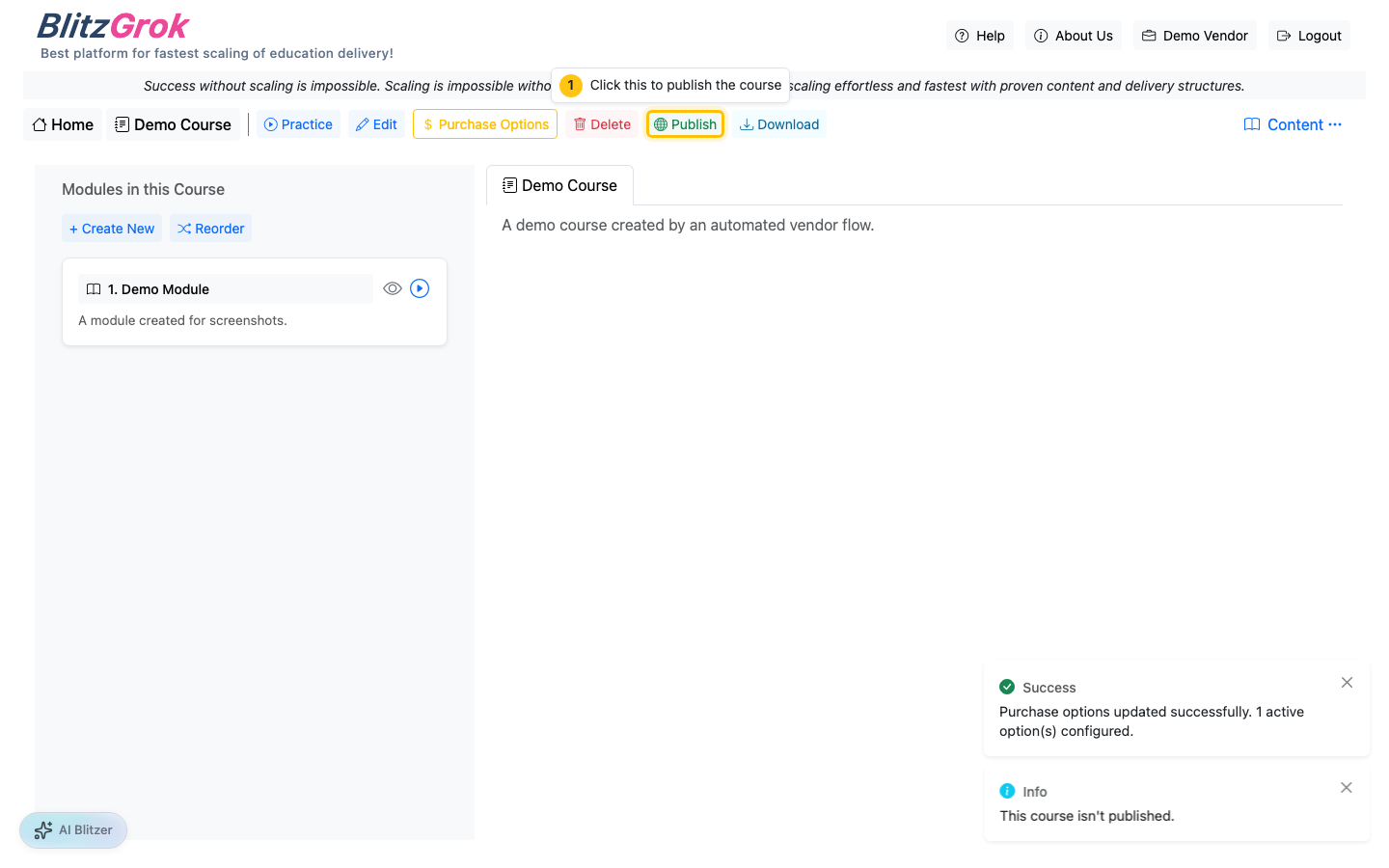
Publishing is the final step—once live, learners can discover and enroll in your course.
- Confirm your course structure, questions, and purchase options are complete
- Click Publish on the course page
- Your course becomes visible on the platform for learners to find

Questions about creating content?
We're here to help you get started